Statements - Configuration and Usage for Emailing Statements (Single Account and End of the Month Batch Statements)
Configuring Email Template in Global Settings
VisualDLP provides default text in the Statement Email template that is sent to your Account Recipients, and allows you to customize some of the text that can be included.
Configuring Default Email Template
The table below lists the default text that is sent with each email. Two Fields (Lab Name and Phone Number) must be added in Company Settings to be included in the default text.
From VisualDLP Launch Pad, access Global Settings -> Company Settings
The following needs to be completed one time for each business unit that will email Statements (See image below):
1. Edit applicable fields:
- Lab Name (Required)
- Lab Description
- Address Fields
- Select Postal Code
- Phone Number (Required)
2. Click the Submit button to save the Company Settings information.
*Items can be customized.
| *Email Subject | Lab Name - Accounting Period (Billing Cycle) Statement | Example: Jenmar Demo Lab - August 2020 Statement | |
| *Email Sender | no-reply@jenmarinternational.com |
| |
*Email Body | "Your account statement from Lab Name is available for download." | Example: Your account statement from Jenmar Demo Lab is available for download. | |
Account Information | Account Name: Selected Account Name Billing Cycle: Selected Accounting Period (Billing Cycle) | Example: Account Name: VisualDLP Orthodontic World Example: Billing Cycle: August 2020 | |
Link to Account Statement | "You can download your account statement by clicking the link below: <LINK>" | Link to Account Statement Cannot be modified. | |
Link Expiration | "The link above will expire in 30 days." |
| |
Link Expiration Contact Information | "If the link is no longer active please contact Lab Name at Lab Phone Number and request a new email." | Example: If the link is no longer active, please contact Jenmar Demo Lab at (866) 850-7195. | |
Configuring Customized Email Template
The table below lists the fields that can be customized and included in each email.
From VisualDLP Launch Pad, access Global Settings -> Statement Settings
The following needs to be completed one time for each business unit that will email Statements:
1. Determine which of the available fields you would like to customize.
2. Edit applicable fields:
- Statement Email Subject
- From Email Address
- Body Email Text
- Email Signature Lines
3. Click Submit button to save the customized Statement Email information.
Note: You may leave any customized field blank to skip and use the default text.
| Statement Email Subject | Single Line of Text |
|
| From Email Address | Requires valid Email Address |
|
Body Email Text | Multiple Lines of Text |
|
Email Signature | Multiple Lines of Text |
|
Configuring Statement Recipients
Setup the accounts to which you want to email statements by specifying recipients.
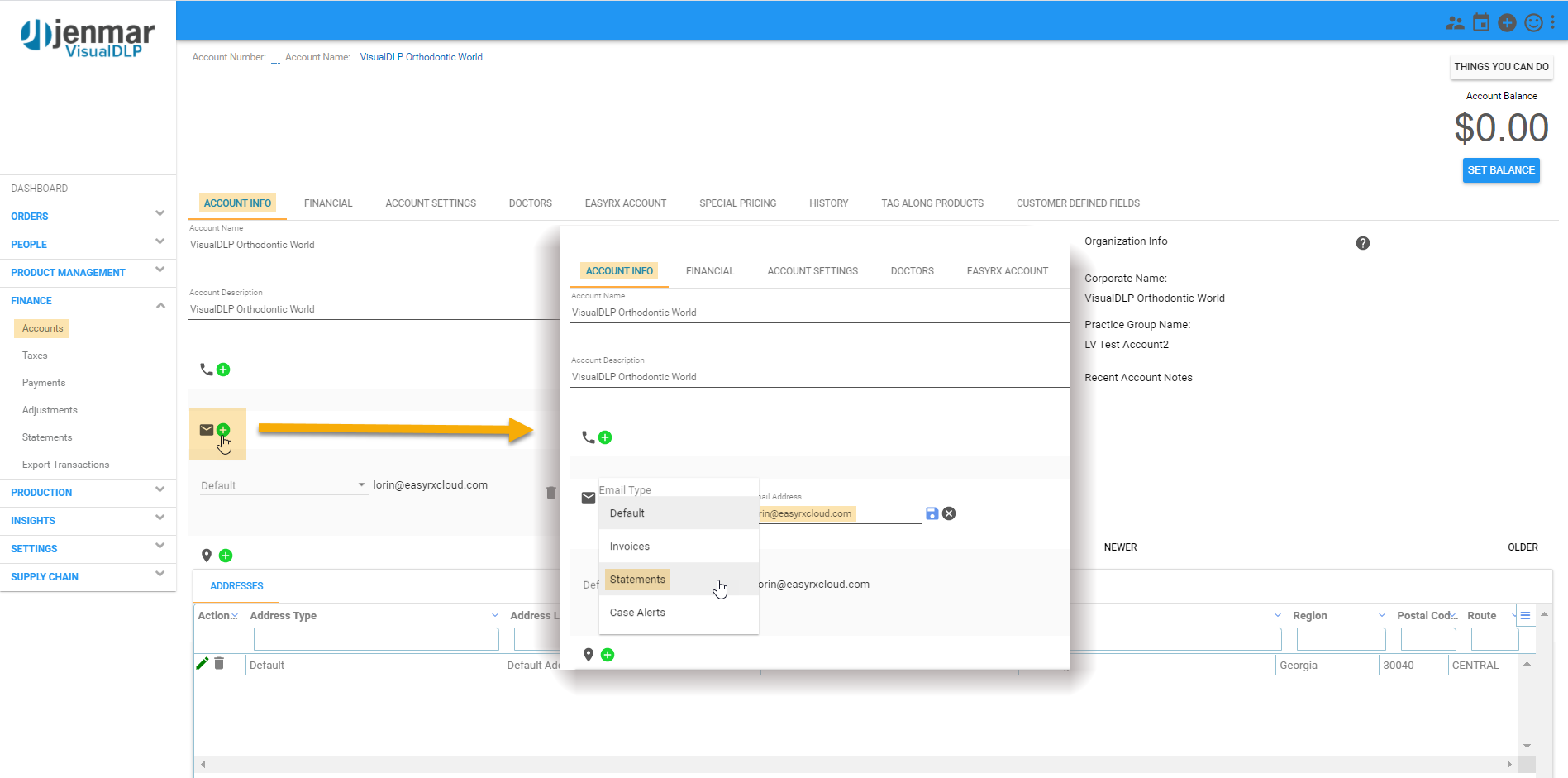
From VisualDLP Launch Pad, access Order Management -> Finance -> Accounts -> select an Account -> Account Info tab
The following needs to be completed one time for each account that will receive Statements:
1. Locate and click the add email icon
2. Select "Statement" from the email type drop-down, enter the email address and click the save icon to add to the Account's record.
3. If there are multiple statement recipients, continue adding additional "Statement" email addresses until all are included.
Note: You may add an email address multiple times for optional purposes such as "Default, Invoice, Statements, and Case Alerts."
Emailing Single Account Statements
The following steps will instruct you how to manually email a single account statement:
Prerequisite(s):
Accounts must have an added Statement Email on their Account Info tab.
Statements must have been generated for a prior billing period.
From VisualDLP Launch Pad, access Order Management -> Finance -> Accounts -> select an Account -> Financial tab -> Prior Statements tab
The following needs to be completed each time you want to email a single statement.
1. Locate the applicable Accounting Period row.
2. Click the Email icon to immediately email the statement to configured recipients.
3. Repeat after accessing each Account for which you need to send a statement.
Note: There will be a message indicator in the lower right corner of the page when the email is sent.
- Single Statement emails for prior periods can be sent multiple times and at any time of the month.
- All email addresses configured with email type "Statement" on the Account Info tab will receive a statement when sent or generated.
- Statement emails will include a link to the selected statement pdf file that was previously generated.
- If the Statement Email Template is modified, the changes will be immediately active when saved and included in the next sent email.
- If there is not an email icon next to an existing Accounting Period entry, the Account does not have an email configured with type "Statement" on the Account Info tab.
Emailing Multiple Account Statements from an End of Month Generated Batch
The following steps will instruct you how to email multiple Account Statements from an End of Month generated batch:
Prerequisite(s):
Accounts must have an added Statement Email on their Account Info tab.
Statements must have been generated for a Month End
From VisualDLP Launch Pad, access Order Management -> Finance -> Statements menu
The following needs to be completed each time you want to email a single statement.
1. Locate the applicable Accounting Period row.
2. Click the Email icon to immediately email the statement to configured recipients.
3. Repeat after accessing each Account for which you need to send a statement.
Related Articles
VisualDLP - Closing the Month - Recommendations
VisualDLP - Closing the Month - Recommendations As you approach month end, here is a check list of things you should be aware of before and after you close the month. Recommendations: Run a Mid-month Statement at least once before the end of the ...Financial: Run Middle of the Month - Statements
Financial: Run Middle of the Month - Statements To run a Middle of the Month Statement batch: From Launch Pad, access Order Management From the Finance menu, click the Statements menu 1. Click the Pick Accounts button Review the list of auto-selected ...Lab Dashboard - Configuration and Usage
Lab Dashboard Use Lab Dashboard to monitor your orders in production. Contact Jenmar Support to have Lab Dashboard added to your available modules. Example Scenario: The product PFM has a series of activities that must be completed to produce it ...VisualDLP - Closing the Month and Printing Statements Instructions
VisualDLP - Closing the Month and Printing Statements Instructions Note: if you want to automatically print statements you should have QZ Tray installed and running and have configured a default printer for statements in My Settings Setting Up ...Batch Email Invoices
Now users can select multiple invoices to email to an account on demand. To send an invoice via email, be sure there is an email setup in the account for invoices, then click on Financial and select the invoices you want to email. Note, a separate ...