Admin Permissions and User Groups
Users who are invited or upgraded to Admin users have access to additional features in VisualDLP. They are mainly administrative in nature. See the list below.
Admin Permissions
1. Can Invite New Users
2. Can Export/Import doctors
3. Can Import Accounts
4. Can Import Products
5. Can access the Global Settings module
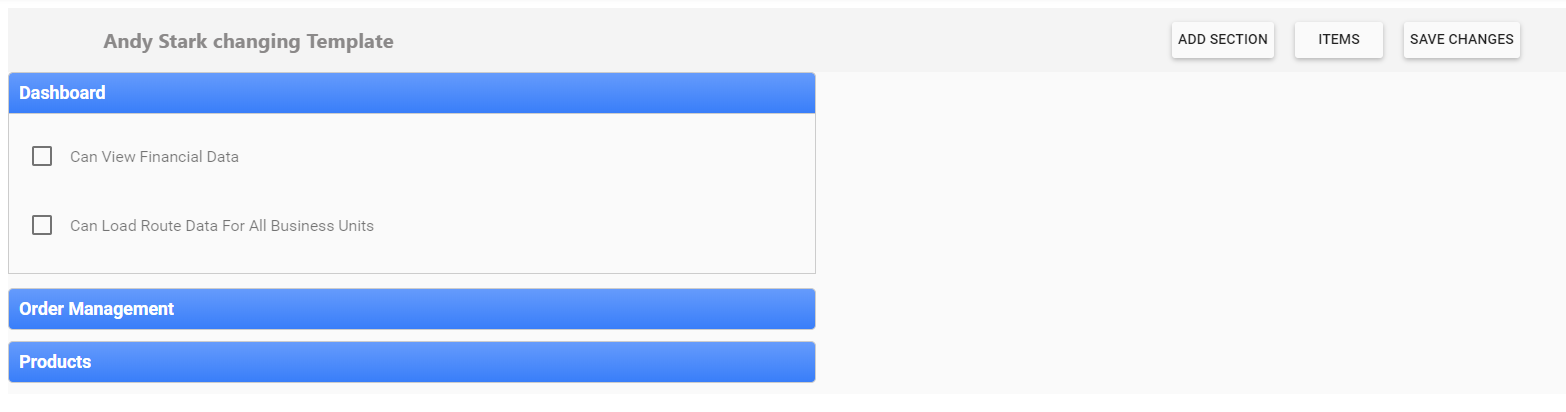
VisualDLP has a user group system that allows granular permissions to be created and assigned. For example, if you want to exclude a user from accessing financial data, Admins can create a User Group and assign users that cannot see financial data to that group. Below is a screen shot of the User Group interface in Global Settings. If you want to extend the User Group permissions, contact support to add new permissions.
Related Articles
DL-Plus User's Guide (Build 2.2.400) - Full Doc
DL-Plus User’s Guide (Build 2.2.400) Copyright © 2014 Jenmar International, Inc. All rights reserved. Information in this document is subject to change without notice. No part of it may be copied, reproduced, translated, transmitted, or reduced to ...Reports - Report Groups - Assigning Accounts to Report Groups
Reports - Report Groups - Assigning Accounts to Report Groups Configure Report Groups: From Launch Pad, access Global Settings module Click on Report Groups menu Click Add New Report Group button to add labels for your groups. Assign an Account to a ...2019-10 October Update
Below is a summary of the enhancements and bug fixes found in our latest update of VisualDLP Faster Updates to Orders - Saving an order is now three times faster than before. Added Account Phone Numbers to the Shipping Tab of the Order Entry Page ...Setting Up Product Groups
There are two ways to group products together in VisualDLP, they are Department and Product Types. Once products are grouped, you can run reports to see sales and units by these two groupings. To add new Departments follow these steps: Log into ...Inviting New Users To VisualDLP
What you’ll need Unique email address for each user you want to invite. Steps Log into VisualDLP as an Admin user then from the Dashboard, click on the Order Management Module. Click on People/Invitations Select the Business Unit and Module you want ...